

Figma Console MCP - Setup Guide
Complete setup instructions for connecting Figma Console MCP to various AI clients including Claude Desktop, OpenAI Codex, GitHub Copilot (VS Code), Cursor, Windsurf, and more.🎯 Choose Your Setup
First, decide what you want to do:⚠️ Important: Capability Differences
Bottom line: Remote mode is read-only with 9 tools. Cloud Mode adds write access (101 tools) without Node.js. Local (NPX/Git) has everything (121 tools) including real-time monitoring.
🎓 Community Setup Guides
New to MCP servers, JSON configs, and terminal commands? These designer-friendly guides walk through the full NPX setup process step by step — created by designers, for designers.- Video Walkthrough
- Written Guide
Joey Banks — Video Walkthrough
Joey Banks walks through setting up Figma Console MCP and using it to programmatically create 242 color swatches with linked variables, hex values, and RGB info — a task that would take hours manually.“This to me is incredible. This is such an awesome way to visualize all of the colors or the crayons that we have to work with.” — Joey BanksView on LinkedIn →
🚀 NPX Setup (Recommended)
Best for: Anyone who wants full AI-assisted design and development capabilities with automatic updates. What you get: All 121 tools including design creation, variable management, component instantiation, design-to-code workflows, and Desktop Bridge plugin support.Prerequisites Checklist
Before starting, verify you have:- Node.js 18+ installed — Check with
node --version(Download) - Figma Desktop installed (not just the web app)
- An MCP client installed (Claude Desktop, Claude Code, Cursor, Windsurf, etc.)
Step 1: Get Your Figma Token (~2 min)
- Go to Manage personal access tokens in Figma Help
- Follow the steps to create a new personal access token
- Enter description:
Figma Console MCP - Set the following scopes:
💡 No other scopes are needed. Leave Webhooks, Dev resources, and Library analytics as “No access”.
- Click “Generate token”
- Copy the token immediately — you won’t see it again!
💡 Your token starts with figd_ — if it doesn’t, something went wrong.
Step 2: Configure Your MCP Client (~3 min)
💡 Using OpenAI Codex? Skip to the dedicated Codex setup section — it uses a graphical interface instead of JSON config files.
Claude Code (CLI)
Option A: CLI command (quickest)- macOS / Linux:
~/.claude.json - Windows:
%USERPROFILE%\.claude.json
~/.claude.json (create the file if it doesn’t exist):
💡 If~/.claude.jsonalready exists with other MCP servers, just add the"figma-console"entry inside the existing"mcpServers"object.
Cursor / Windsurf / Other MCP Clients
Find your client’s MCP config file and add:Claude Desktop
- Open Claude Desktop
-
Go to Settings → Developer → Edit Config (or manually edit the config file)
- macOS:
~/Library/Application Support/Claude/claude_desktop_config.json - Windows:
%APPDATA%\Claude\claude_desktop_config.json
- macOS:
- Add the same JSON configuration shown above
- Save the file
Step 3: Connect to Figma Desktop (~2 min)
Install the Desktop Bridge Plugin
The Desktop Bridge Plugin connects via WebSocket — no special Figma launch flags needed, and it persists across Figma restarts.
Stable import path: The MCP server automatically copies plugin files to ~/.figma-console-mcp/plugin/ on startup. Import from this path — it never changes between npm updates.
- Open Figma Desktop (normal launch, no special flags)
- In Figma, go to Plugins → Development → Import plugin from manifest…
- Navigate to
~/.figma-console-mcp/plugin/manifest.jsonand select it - Click “Open” — the plugin appears in your Development plugins list
- Run the plugin in your Figma file (Plugins → Development → Figma Desktop Bridge)
- The plugin scans ports 9223–9232 on launch, connects to the first available MCP server, and shows
Local · ready(orCloud · ready, orLocal + Cloud · readyif you also pair to cloud) in its status pill.
About plugin updates. Figma caches plugin files (code.jsandui.html) at the application level. The MCP server keeps the stable path at~/.figma-console-mcp/plugin/in sync with the running build on every startup, but Figma uses its cached copy until you re-import. Re-importing is required only when the release notes call it out (typically when the plugin adds a new method the server needs — e.g. v1.22.4 and v1.10.0). For wire-compatible upgrades, re-importing is optional and only refreshes plugin-side cosmetic touches (status-pill copy,pluginVersionreporting). When you do re-import: Plugins → Manage plugins → re-import~/.figma-console-mcp/plugin/manifest.json.
Alternative path: If📖 Desktop Bridge Plugin Documentation~/.figma-console-mcp/plugin/doesn’t exist yet (first run), you can find the path by runningnpx figma-console-mcp@latest --print-pathor checking thepluginPathfield infigma_get_status.
Multi-Instance / Port Conflicts
Multiple MCP clients (e.g., Claude Desktop Chat + Code tabs, Claude + Cursor) are handled automatically:- Each MCP server claims the next available port in the range 9223–9232
- The plugin connects to all active servers simultaneously
- Orphaned server processes from closed tabs are automatically detected and terminated on startup
- No manual port management needed (the plugin scans the whole range automatically)
Step 4: Restart Your MCP Client (~1 min)
- Restart your MCP client (quit and reopen Claude Code, Cursor, Windsurf, Claude Desktop, etc.)
- Verify the MCP server is connected (e.g., in Claude Desktop look for the 🔌 icon showing “figma-console: connected”)
Step 5: Test It! (~2 min)
Try these prompts to verify everything works:🔧 Local Git Setup (Alternative)
Best for: Users who want more control over when updates happen, or developers who want to contribute to the project. What you get: Same 121 tools as NPX. Updates are manual — you pull and rebuild when you’re ready.Prerequisites
- Node.js 18+ installed
- Git installed
- Figma Desktop installed
- An MCP client installed (Claude Desktop, Claude Code, Cursor, Windsurf, etc.)
Step 1: Clone and Build
Step 2: Get Figma Token
Same as NPX Step 1 above.Step 3: Configure Your MCP Client
Claude Code (CLI)
Option A: CLI command (quickest)- macOS / Linux:
~/.claude.json - Windows:
%USERPROFILE%\.claude.json
Other MCP Clients (Cursor, Windsurf, Claude Desktop, etc.)
Edit your client’s MCP config file:- Replace
/absolute/path/to/figma-console-mcpwith the actual path where you cloned the repo - Use forward slashes
/even on Windows
Step 4: Connect to Figma Desktop
Same as NPX Step 3 above — install the Desktop Bridge Plugin.Step 5: Restart Your MCP Client and Test
Same as NPX Steps 4 & 5 above.Updating
To get the latest changes:☁️ Cloud Mode (Web AI Clients)
Best for: Claude.ai, v0, Replit, Lovable, and any MCP-capable web platform that needs to create and modify Figma designs. What you get: 101 tools — full write access (create frames, components, variables, edit designs) plus REST API reads, design system extraction, comments, version history, slides, FigJam, and annotations. This is Remote Mode upgraded with the Cloud Write Relay. What you don’t get vs Local: Real-time selection tracking, document change monitoring, and console log streaming (these require a local WebSocket connection).Prerequisites
- Figma Personal Access Token — Create one here (starts with
figd_) - Figma Desktop with the Desktop Bridge plugin installed and running in your file
- A web AI client that supports MCP (Claude.ai, Lovable, v0, Replit, etc.)
No Node.js required. The relay runs entirely in Cloudflare Workers.
Step 1: Add the MCP Connector to Your Platform (~1 min)
Add the Figma Console MCP endpoint to your AI platform’s MCP settings: Endpoint URL:https://figma-console-mcp.southleft.com/mcp
Authentication: Your Figma Personal Access Token as a Bearer token
How to add this depends on your platform:
Step 2: Run the Desktop Bridge Plugin in Figma (~30 sec)
- Open Figma Desktop and navigate to your design file
- Run the plugin: Plugins → Development → Figma Desktop Bridge
- You should see the status pill showing the active transport:
Local · ready,Cloud · ready, orLocal + Cloud · ready(when paired with both)
First time? Import the plugin once: In Figma go to Plugins → Development → Import plugin from manifest → select ~/.figma-console-mcp/plugin/manifest.json. After future MCP server updates, re-importing is optional — only required when release notes specifically call for it (e.g. when the plugin adds a new method the server needs). Most upgrades stay wire-compatible with the previous plugin.
Step 3: Pair via Cloud Mode (~30 sec)
-
Tell your AI to connect to your Figma plugin using natural language:
- “Connect to my Figma plugin”
- “Pair with my design file”
- “I want to create designs in Figma”
- Your AI generates a 6-character pairing code (expires in 5 minutes)
-
In the Desktop Bridge plugin:
- Toggle “Cloud Mode” (the small chevron below the status bar)
- Enter the pairing code
- Click Connect
- Done. Your AI now has full write access to the open Figma file through the cloud relay.
What You Can Do (93 Tools)
- ✅ Create frames, shapes, and components
- ✅ Edit existing designs (resize, reposition, restyle)
- ✅ Create and manage variables on any Figma plan (via Plugin API)
- ✅ Instantiate components and set instance properties
- ✅ Clone, delete, and rename nodes
- ✅ Set fills, strokes, and text content
- ✅ Set image fills on nodes
- ✅ Read design data, take screenshots, extract design systems
What’s Local-Only (Not Available in Cloud Mode)
- ❌ Real-time selection tracking
- ❌ Document change monitoring
- ❌ Console log streaming
- ❌ MCP Apps (Token Browser, Design System Dashboard)
Tips
- The pairing code expires after 5 minutes — generate a new one if it times out
- If the connection drops between AI turns, ask your AI to reconnect and enter a fresh code
- The Desktop Bridge plugin must stay running in your Figma file for the relay to work
- Variables work on any Figma plan (Free, Pro, Organization) because the relay uses the Plugin API, not the Enterprise REST API
📡 Remote Mode (Read-Only Exploration)
Best for: Quickly evaluating the tool or read-only design data extraction without any plugin setup. What you get: 9 read-only tools for viewing design data, taking screenshots, reading console logs, and design system extraction.Want write access? See Cloud Mode above — same remote endpoint, plus Desktop Bridge pairing for full design creation.Two remote endpoints are available:
Prerequisites
- Claude Desktop installed (for
/sse), or an MCP-compatible code generator (for/mcp) - For
/mcp: A Figma Personal Access Token
Option A: SSE Endpoint (Claude Desktop, Cursor, Windsurf)
The/sse endpoint uses OAuth — authentication happens automatically when you first connect.
UI-Based Setup (Claude Desktop):
- Open Claude Desktop → Settings → Connectors
- Click “Add Custom Connector”
- Enter:
- Name:
Figma Console (Read-Only) - URL:
https://figma-console-mcp.southleft.com/sse
- Name:
- Click “Add”
- Done! ✅
Option B: Streamable HTTP Endpoint (AI Code Generators)
The/mcp endpoint accepts your Figma Personal Access Token as a Bearer token — no OAuth flow needed. This is ideal for AI code generators like Lovable, v0, and Replit that support custom MCP servers with Streamable HTTP transport.
Endpoint: https://figma-console-mcp.southleft.com/mcp
Authentication: Pass your Figma PAT as a Bearer token in the Authorization header.
How to connect depends on the platform — look for “Add MCP Server” or “Custom Tool” in your code generator’s settings, provide the URL above, and add your Figma token as the Bearer token.
What You Can Do (Read-Only)
- ✅ View design data and file structure
- ✅ Read design tokens/variables (Enterprise plan required)
- ✅ Take screenshots
- ✅ Read console logs
- ✅ Get component metadata
- ✅ Extract full design system via
figma_get_design_system_kit
What You Cannot Do
- ❌ Create frames, shapes, or components
- ❌ Edit existing designs
- ❌ Create or modify variables
- ❌ Instantiate components
Upgrading to Write Access
Want to create and modify designs? See Cloud Mode above — pair the Desktop Bridge plugin and get full write access from the same/mcp endpoint.
🤖 GitHub Copilot (VS Code)
GitHub Copilot supports MCP servers as of VS Code 1.102+.Prerequisites
- VS Code 1.102 or later
- GitHub Copilot extension installed and active
- For full capabilities: Node.js 18+ and Figma Personal Access Token
Quick Setup (CLI)
Full capabilities (recommended):Manual Configuration
Create.vscode/mcp.json in your project:
Full capabilities:
Security Tip: UseenvFileinstead of inlineenvto keep tokens out of version control.
Starting the Server
- Open Command Palette (Cmd+Shift+P / Ctrl+Shift+P)
- Run “MCP: List Servers”
- Click on “figma-console” to start it
- VS Code may prompt you to trust the server — click Allow
🧠 OpenAI Codex
OpenAI Codex uses a graphical interface for MCP server configuration instead of JSON files. This makes setup straightforward — just fill in the fields.Prerequisites
- OpenAI Codex desktop app installed
- Node.js 18+ installed
- Figma Desktop installed
- Figma Personal Access Token (get one)
Step 1: Add the MCP Server (~2 min)
- Open Codex and go to Settings (gear icon in the sidebar)
- Click Settings again in the submenu
- Select MCP servers from the left sidebar
- Click “Add MCP Server” (or create a new server)
- Fill in the fields:
- Click Save
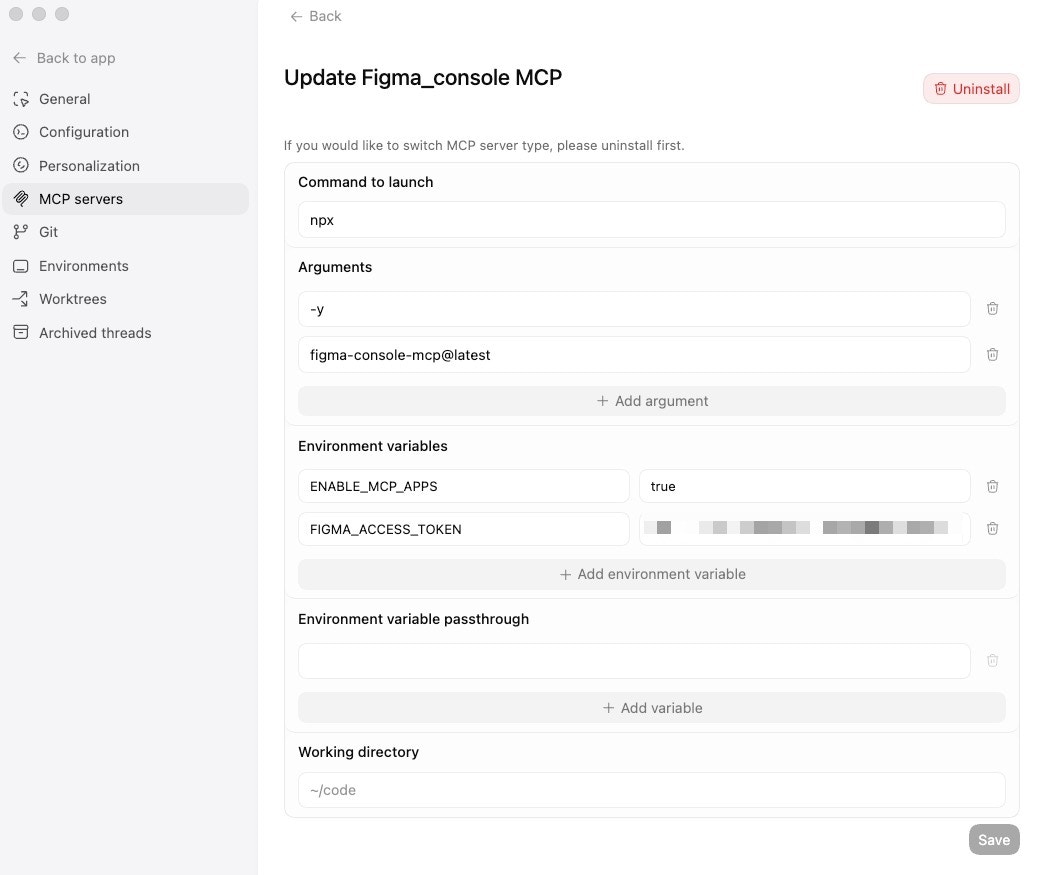
💡 Tip: The Codex UI adds arguments one at a time. Click ”+ Add argument” after entering-yto add the second argumentfigma-console-mcp@latest.
Step 2: Connect to Figma Desktop
Same as NPX Step 3 above — install the Desktop Bridge Plugin in Figma.Step 3: Test It
Start a new thread in Codex and try:Equivalent JSON Config
For reference, the Codex GUI fields map directly to the NPX JSON configuration used by other MCP clients like Claude Desktop, Cursor, and Windsurf.🛠️ Troubleshooting
Quick Fixes
Node.js Version Issues
Symptom: Cryptic errors like “parseArgs not exported from ‘node:util’” Fix: You need Node.js 18 or higher.Claude Code OAuth Issues
⚠️ Known Issue: Claude Code’s nativeDon’t use:--transport ssehas a bug where OAuth completes but the connection fails. Usemcp-remoteinstead.
Config File Syntax Errors
If Claude Desktop doesn’t see your MCP server:- Validate your JSON: Use a tool like jsonlint.com
- Check for common mistakes:
- Missing commas between properties
- Trailing commas (not allowed in JSON)
- Wrong quote characters (must be
"not'or smart quotes)
- Copy the exact config from this guide — don’t retype it
Still Having Issues?
- Check the GitHub Issues
- Ask in Discussions
- Include:
- Your setup method (NPX, Local Git, or Remote)
- The exact error message
- Output of
node --version - Your MCP client (Claude Desktop, Claude Code, etc.)
Optional: Enable MCP Apps
MCP Apps provide interactive UI experiences like the Token Browser and Design System Dashboard. As of v1.10.0,ENABLE_MCP_APPS=true is included in the default configuration examples above.
If you set up before v1.10.0, add "ENABLE_MCP_APPS": "true" to the env section of your MCP config.
Note: MCP Apps require a client with ext-apps protocol support.
Next Steps
- Try example prompts: See Use Cases for workflow examples
- Explore all tools: See Tools Reference for the complete tool list
- Learn about the Desktop Bridge plugin: See Desktop Bridge README for advanced configuration